
How to Remote Desktop to a Windows PC or VPS
TeamViewer, LogMeIn, GoToMyPC, and other remote access applications are some of the ways to login to a distant Windows PC or Windows VPS via the internet. Additionally, Windows has two built-in remote access features: Remote Assistance and Remote Desktop Connection. You can safely access and manage another Windows PC from your own device by using Remote Desktop Connection, or RDP. Make sure both machines are turned on and that remote access is enabled on the distant system before using Remote Desktop to connect to a Windows PC or VPS. Use the procedures listed below to activate Remote Desktop access:
1) Power on your PC.
2) Click on Start >> Control panel >> System.
3) Click on the Remote settings link in the left task panel.
4) Select “System Properties” and click on “Remote” tab.
5) Select the radio button “Allow remote connections to this computer”.
6) Click Ok.
Follow the below steps to remote desktop to Windows.
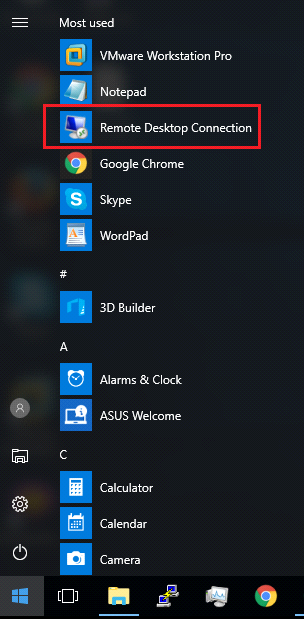
1) Open the Start menu and type “Remote Desktop” in the search box and click on “Remote Desktop Connection”.
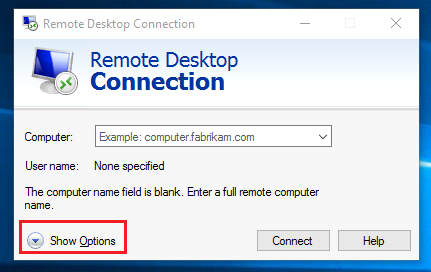
2) Click on “Show options”.
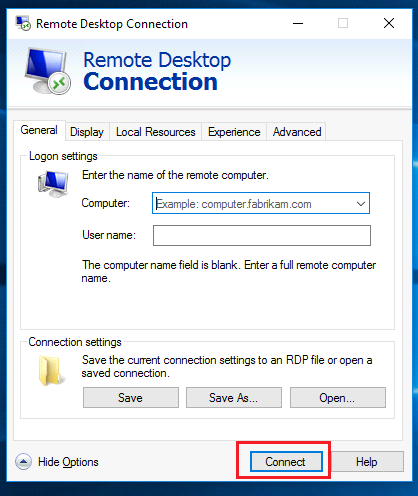
3) Enter the IP address and username of the target computer and click on the button “Connect”.
4) Enter password of the account you configured in the target computer’s Remote Desktop settings and click on the “OK” button.
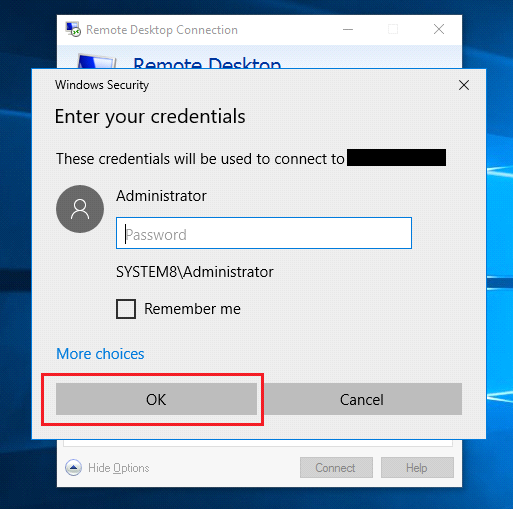
You are now logged in to the target computer from your Windows workstation.
If you need any further help please do reach our support department.